The "No-Open-Ports" Manual: Cloudflare Tunnels for Backend Devs
If you’ve ever had to mess with router port forwarding just to test a Stripe webhook, an OAuth callback, or show a mobile dev your local API, you know the pain. It’s insecure, it’s flaky, and it’s a waste of time.
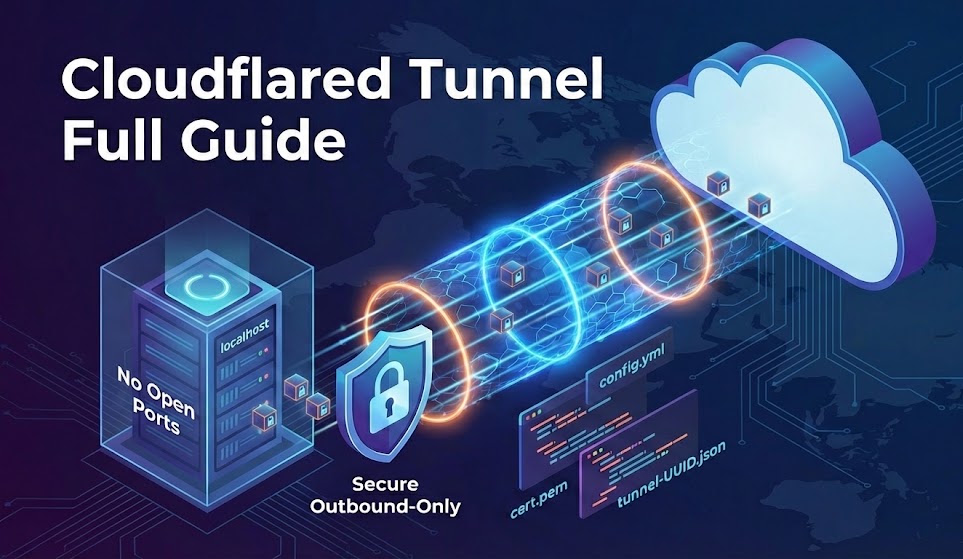
As a senior backend engineer, you want a persistent, secure, and scriptable way to expose local services. Cloudflare Tunnels (cloudflared) create an outbound-only connection to Cloudflare’s edge. Since your machine reaches out to them, you never have to open a port on your firewall.
The Mental Model
cloudflared is a client, not a server.
-
Your app runs on
localhost:8000. -
cloudflaredsits next to it and dials out to Cloudflare (establishing a "pipe"). -
Users hit
api.yourdomain.com. -
Cloudflare sends that traffic down the pipe to your machine.
What this is
A practical end to end guide to install, use, migrate, and back up Cloudflare Tunnel using cloudflared. Works for Windows and Linux. Written to be copied directly into a portfolio or knowledge base.
Core idea
cloudflared creates an outbound connection from your machine to Cloudflare. No open ports. DNS points to the tunnel, not your server IP. If the tunnel credentials exist, any machine can run it.
Requirements
-
Cloudflare account
-
A domain added to Cloudflare
-
cloudflared installed
Install cloudflared
Windows
Using winget
winget install Cloudflare.cloudflared
Or download the binary from Cloudflare and add it to PATH.
Verify
cloudflared --version
Linux
Debian or Ubuntu
curl -fsSL https://pkg.cloudflare.com/cloudflare-main.gpg | sudo tee /usr/share/keyrings/cloudflare-main.gpg >/dev/null
echo "deb [signed-by=/usr/share/keyrings/cloudflare-main.gpg] https://pkg.cloudflare.com/cloudflared jammy main" | sudo tee /etc/apt/sources.list.d/cloudflared.list
sudo apt update
sudo apt install cloudflared
Verify
cloudflared --version
Authenticate with Cloudflare
This links your machine to your Cloudflare account.
cloudflared tunnel login
A browser opens. Choose the domain. After success a cert file is stored locally.
Locations
-
Windows: %USERPROFILE%.cloudflared\cert.pem
-
Linux: ~/.cloudflared/cert.pem
This file is critical.
Create a tunnel
cloudflared tunnel create my-tunnel
You will get
-
Tunnel UUID
-
credentials JSON file
Example
~/.cloudflared/xxxxxxxx-xxxx-xxxx-xxxx-xxxxxxxxxxxx.json
Configure the tunnel
Create config.yml
Windows
Path
%USERPROFILE%\.cloudflared\config.yml
Linux
~/.cloudflared/config.yml
Example config
tunnel: xxxxxxxx-xxxx-xxxx-xxxx-xxxxxxxxxxxx
credentials-file: /full/path/to/credentials.json

ingress:
  - hostname: app.example.com
    service: http://localhost:3000
  - service: http_status:404
DNS routing
Create DNS record that points to the tunnel
cloudflared tunnel route dns my-tunnel app.example.com
Important
-
Type is CNAME
-
Target is the tunnel, not an IP
-
Old CNAMEs from deleted tunnels will break routing
Make the app publicly accessible
If you want your app to be publicly accessible without any authentication checks (like OTP or login prompts) via Cloudflare Access, you need to create a "Bypass" policy.
-
Go to the Cloudflare Zero Trust Dashboard.
-
Navigate to Access > Applications.
-
Click Add an application and select Self-hosted.
-
Enter a name for your app and specify the Application domain you routed to your tunnel (e.g.,
app.example.com). -
Scroll down to Application policies and click Add a policy.
-
Create a policy to allow public access:
-
Policy name: Enter a name like "Public Bypass".
-
Action: Select Bypass.
-
Create additional rules: Under Include, select Everyone.
-
-
Click Add policy to save it.
Your local service (e.g., localhost:3000) is now publicly accessible through the domain without access control.
Run the tunnel
cloudflared tunnel run my-tunnel
Or as a service
Windows
cloudflared service install
Linux
sudo cloudflared service install
Common problems
Site not reachable
-
DNS CNAME points to old tunnel
-
Wrong tunnel UUID in config
-
Wrong credentials file path
Works locally only
-
App not listening on localhost
-
Wrong port in ingress service
Backup and migrate to another machine
This is the most important part.
Files you must back up
From ~/.cloudflared or %USERPROFILE%.cloudflared
-
cert.pem
-
config.yml
-
tunnel-UUID.json
Without these, the tunnel cannot be reused.
Move to another PC
-
Install cloudflared
-
Copy the three files into the same cloudflared directory
-
Ensure paths inside config.yml are correct
-
Run
cloudflared tunnel run my-tunnel
No new tunnel creation needed.
Using the same tunnel on Linux and Windows
Tunnels are platform independent. Only paths differ.
Windows example path
C:\Users\Ahmed\.cloudflared\credentials.json
Linux example path
/home/ahmed/.cloudflared/credentials.json
UUID and cert stay the same.
Security notes
-
Treat cert.pem like a private key
-
Anyone with cert.pem and credentials.json can run your tunnel
-
Store backups encrypted
When to create a new tunnel
-
cert.pem is compromised
-
You want strict isolation between environments
-
You deleted the tunnel from Cloudflare dashboard
Otherwise reuse the same tunnel.
Mental model
cloudflared is a client, not a server. DNS points to Cloudflare. Cloudflare talks to your tunnel. Your machine never opens a port. That is why backups matter more than the machine itself. This portfolio is deployed behind Cloudflare Tunnels — no open ports on the server, everything proxied through Zero Trust. It's the same setup I describe in this post.
For the full production stack including Postgres and Dokploy orchestration, see my How to Self-Host a Next.js Blog on Dokploy. If you're interested in how I handle this at scale, check out The Drive Center.
Further Reading
Related Articles
Cloudflared Tunnel Full Guide
Everything you need to know about Cloudflare Tunnel: installation, configuration, migration, and bac
CVSS 10.0 Is Not a Coincidence, From Next.js to n8n
CVSS 10.0 is not a coincidence. How Next.js and n8n scored perfect 10s, what the scoring system actu
🎯 The Definitive Guide to Image Privacy & Orientation in Laravel
Image privacy & orientation in Laravel: EXIF data, auto-rotation, secure uploads with S3 and R2.